This tutorial guides you through signing up and logging in to HKSS so you can start immediately.
(You can start in about one minute. No appointment and no installation required.)
Preparation
- Follow the on-screen instructions shown in this step.
- Follow the on-screen instructions shown in this step.
Detailed Operations
- Open our website in your browser (https://www.hkss.ltd/).
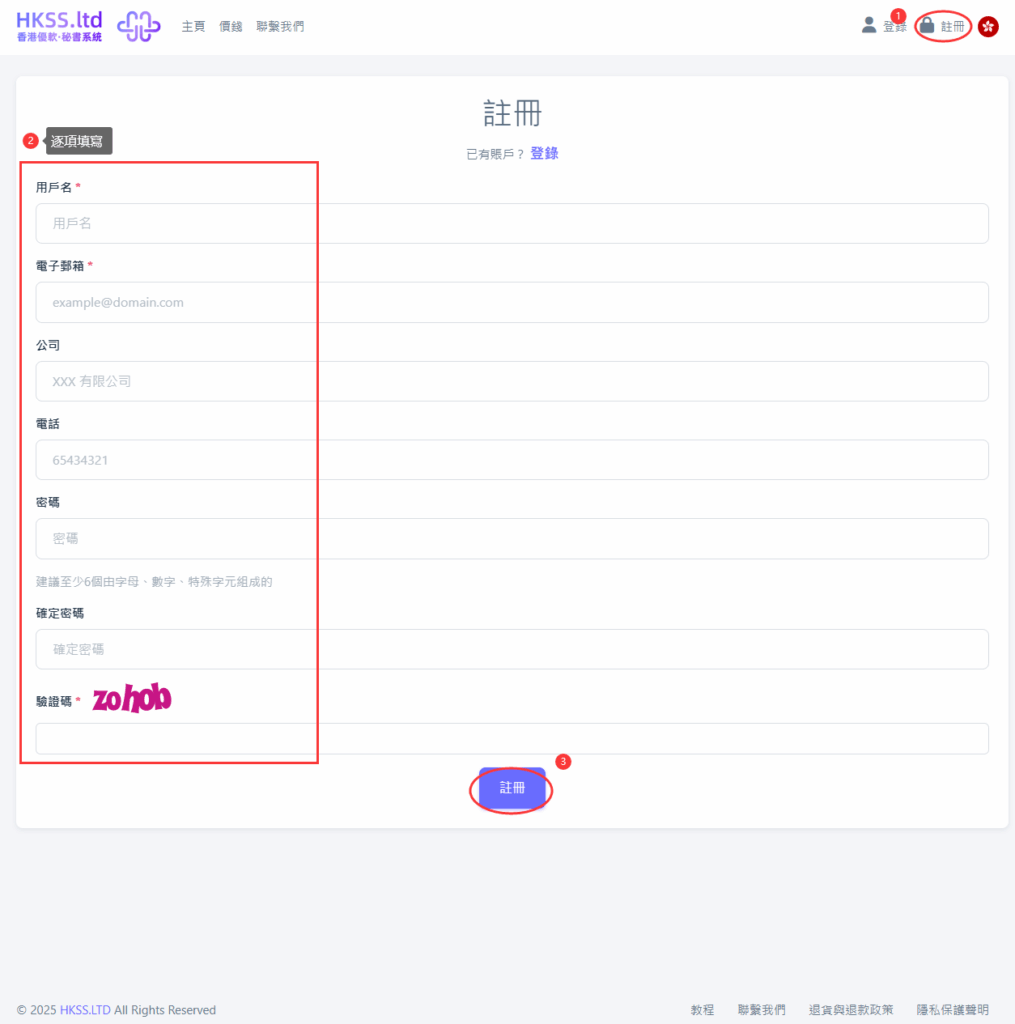
- Click the "Sign Up" button in the top-right corner.
- Fill in the required information and click "Sign Up". You will receive an email with a verification link. Open your mailbox and verify.
If the email is sent successfully, you will see a prompt like this:
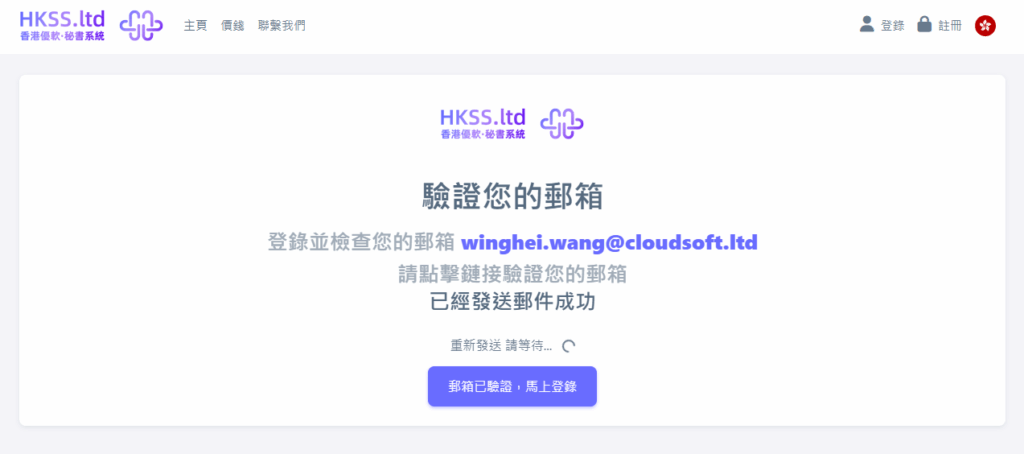
If you do not receive the email, follow these steps:
- Check your spam/junk folder first.
- On the current page, click resend once (or refresh first if no action button is available).
- Take a screenshot and contact support (https://www.hkss.ltd/contact).
- Click the relevant menu/button and continue to the next step.
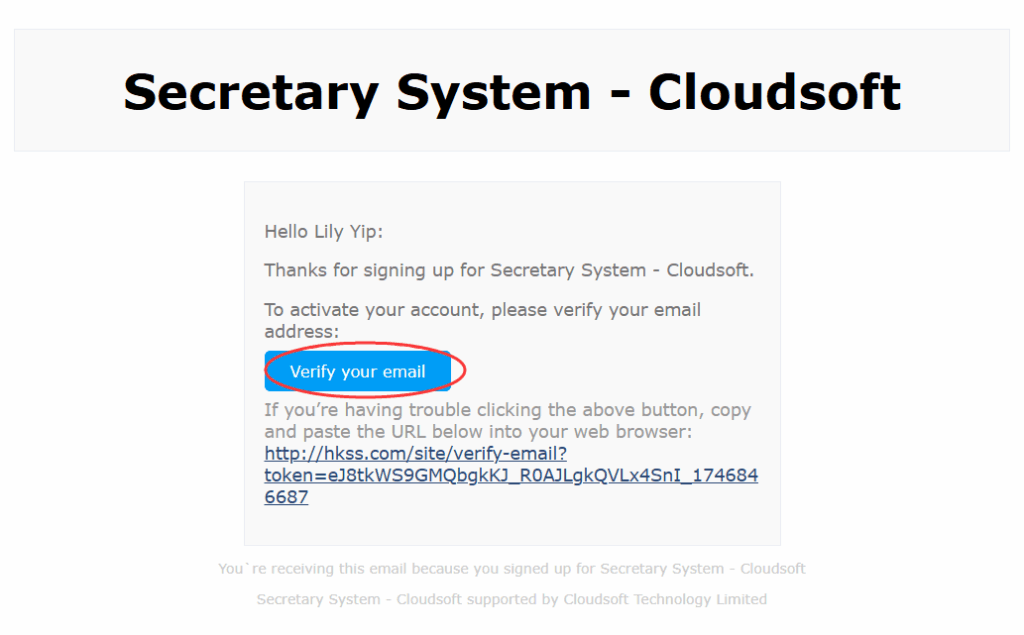
Please follow the on-screen instructions in this section.
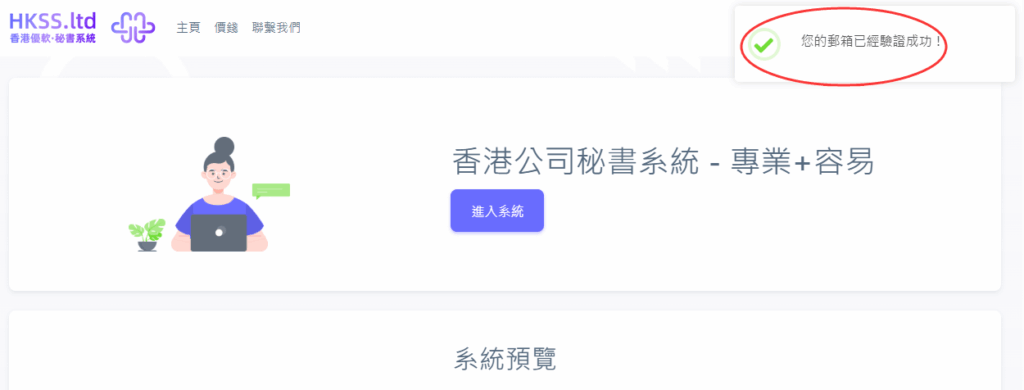
- Normally, if you verify on the same device, you will be logged in automatically. Otherwise, click "Log In" in the top-right corner.
Please follow the on-screen instructions in this section.
- After logging in, click "Enter System".
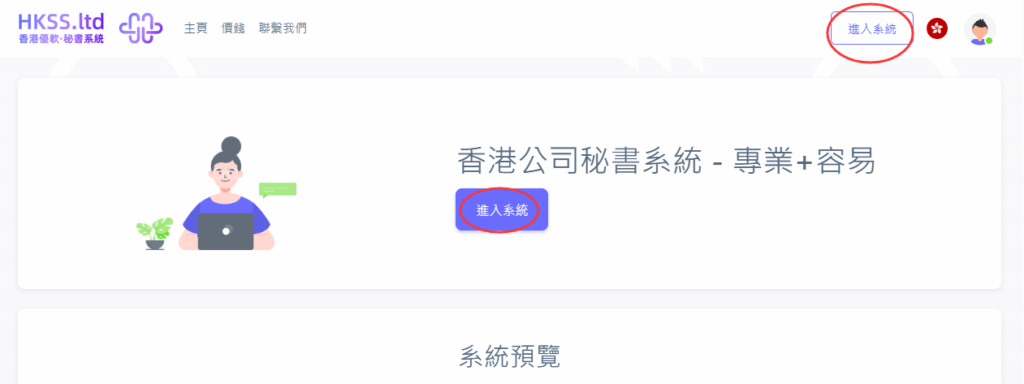
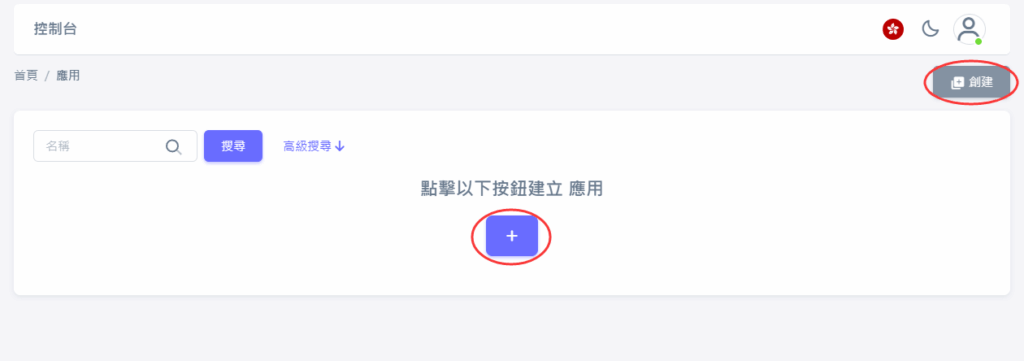
- After entering the system, click "Create" (or the plus icon).
- Usually choose the basic plan, enter your company name, and click create.
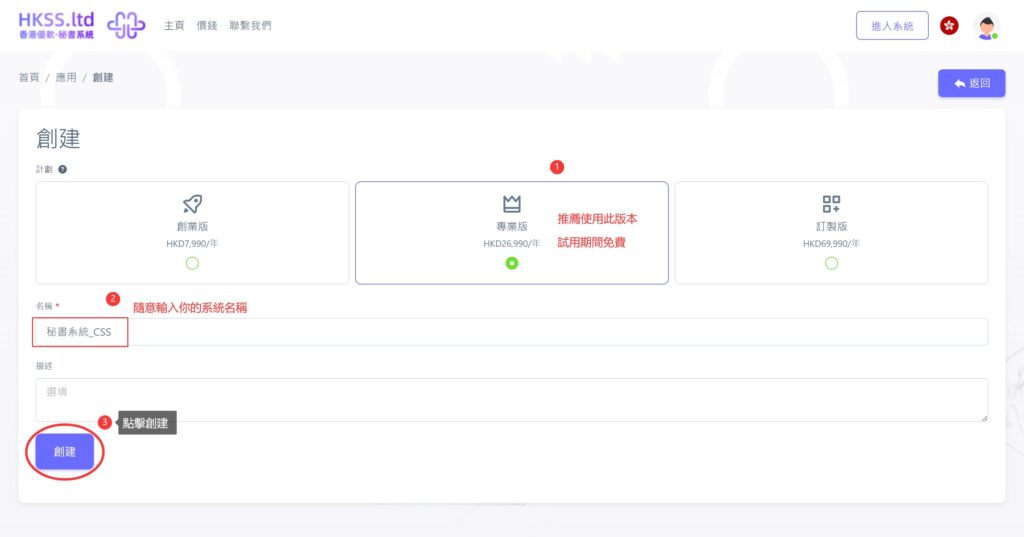
Please follow the on-screen instructions in this section.
- Creating your secretarial system usually takes about 10 seconds. When successful, click "Enter System".
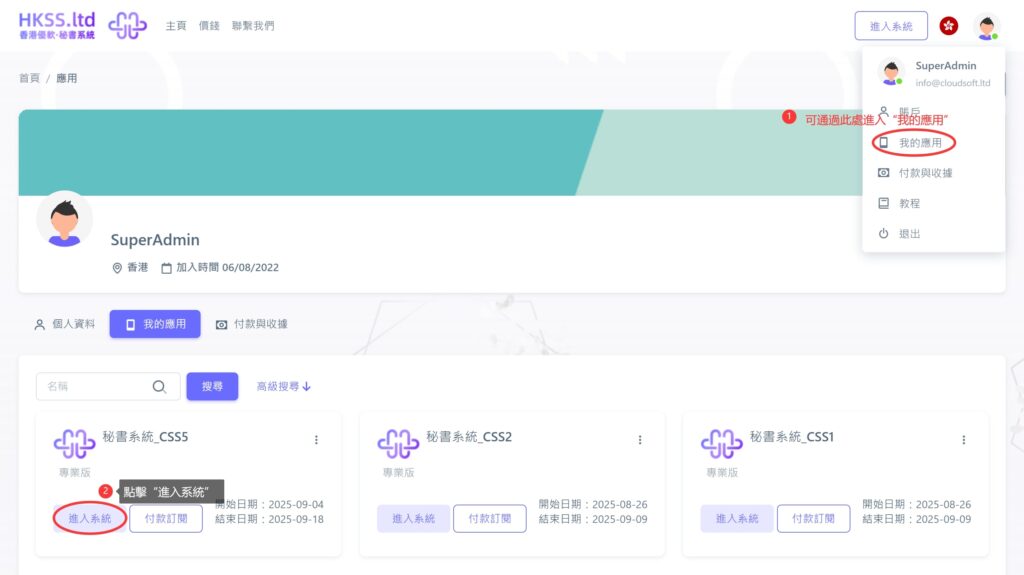
- After entering the system, you will see a page like below. Your account and cloud Com Sec System are now ready.
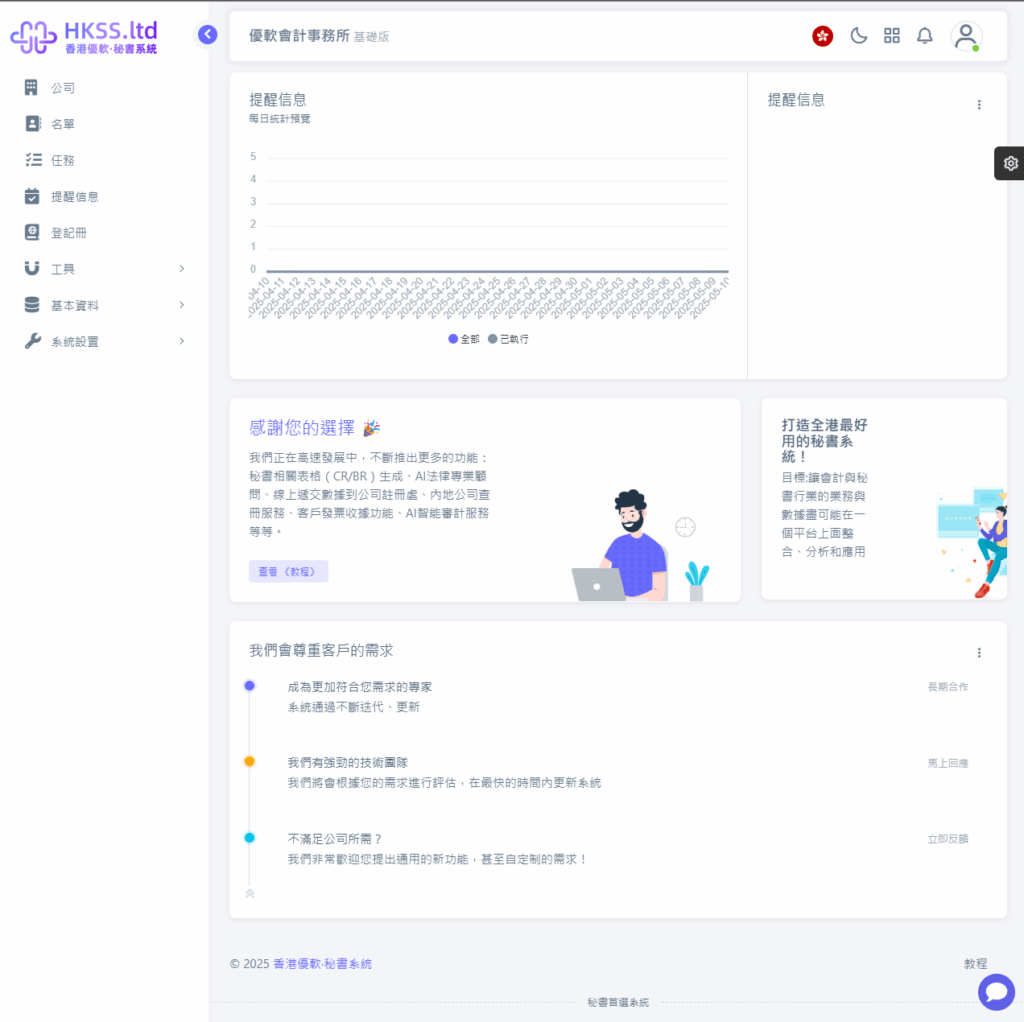
Please follow the on-screen instructions in this section.
Please follow the on-screen instructions in this section.
Please follow the on-screen instructions in this section.
